Make Things EQ
Yours to keep
$00$000launch price
- Every feature on this page
- AU and VST3 for Mac, Windows coming
- Updates for this version
AU and VST3 for Mac. Windows coming.
 Beta Testing
The EQ that does it all, and makes it feel simple.
The compressor that gates too, and shows every move.
Coming Beta Testing
The modular rack that fits any slot, and plays anything.
One session, every feature. See how little it takes.
One track vanishes in the mix. You open its EQ.
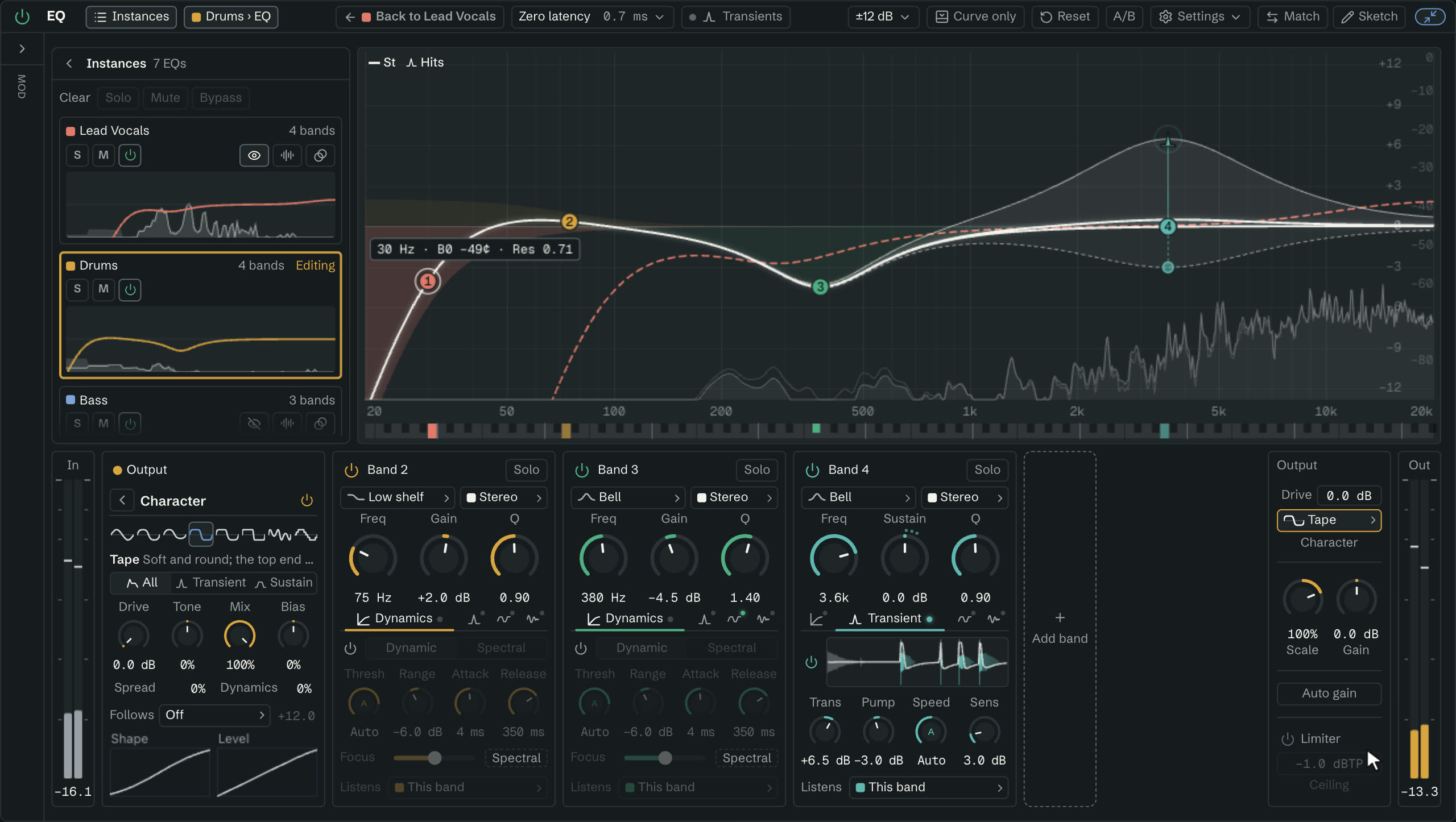
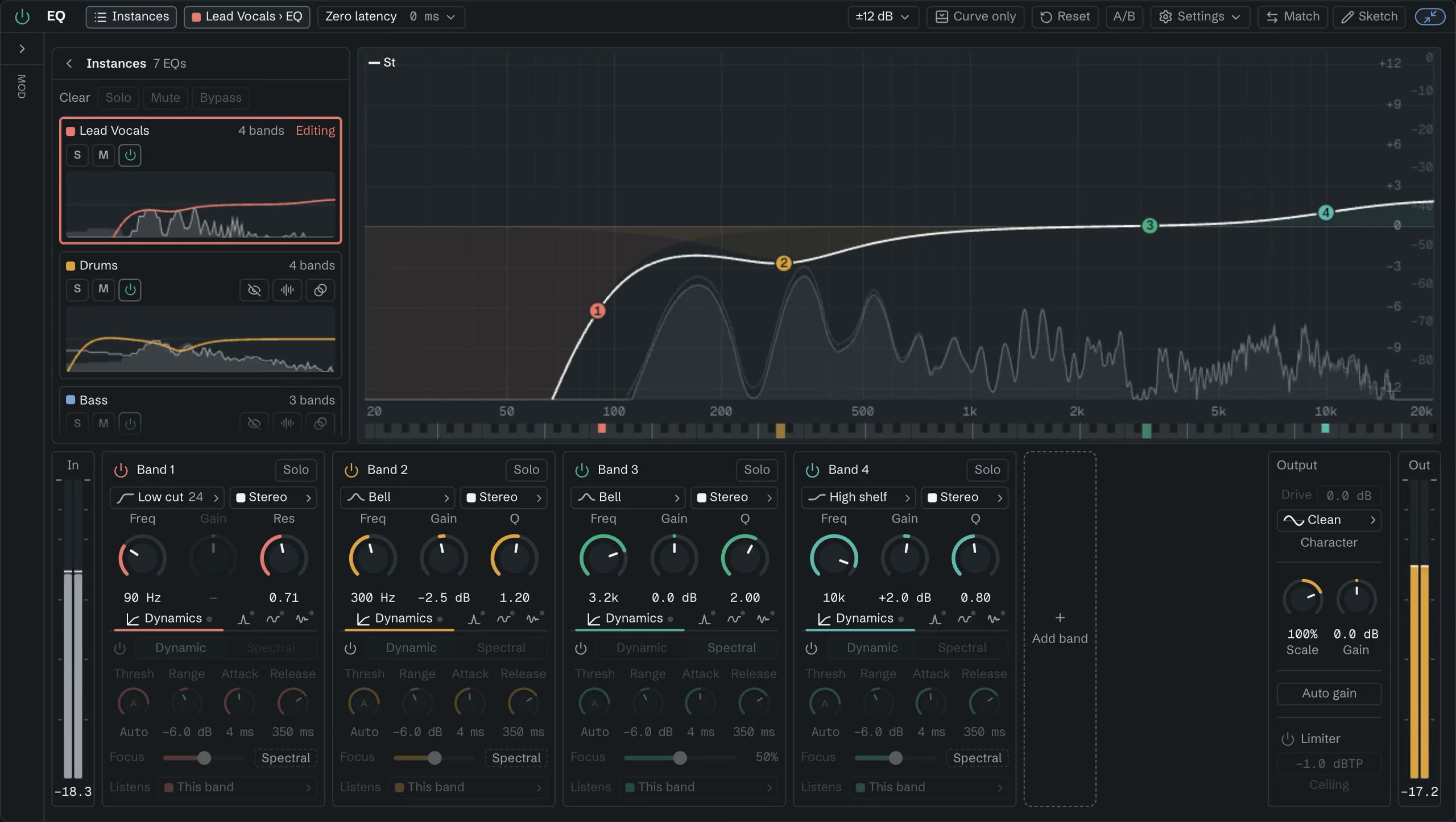
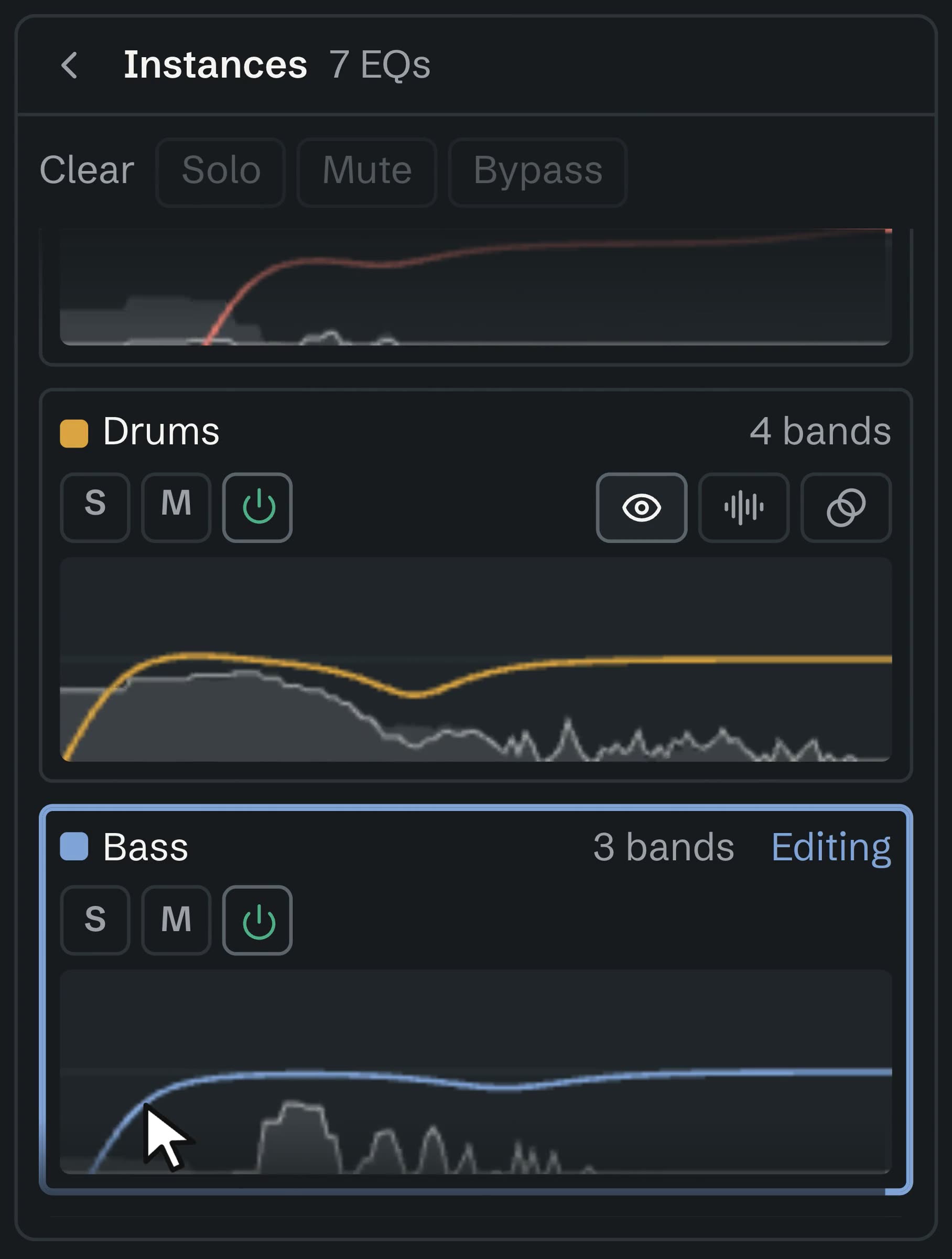
Every Make Things EQ in your session is listed beside the curve, with its name, its band count and a live picture of its curve and spectrum.
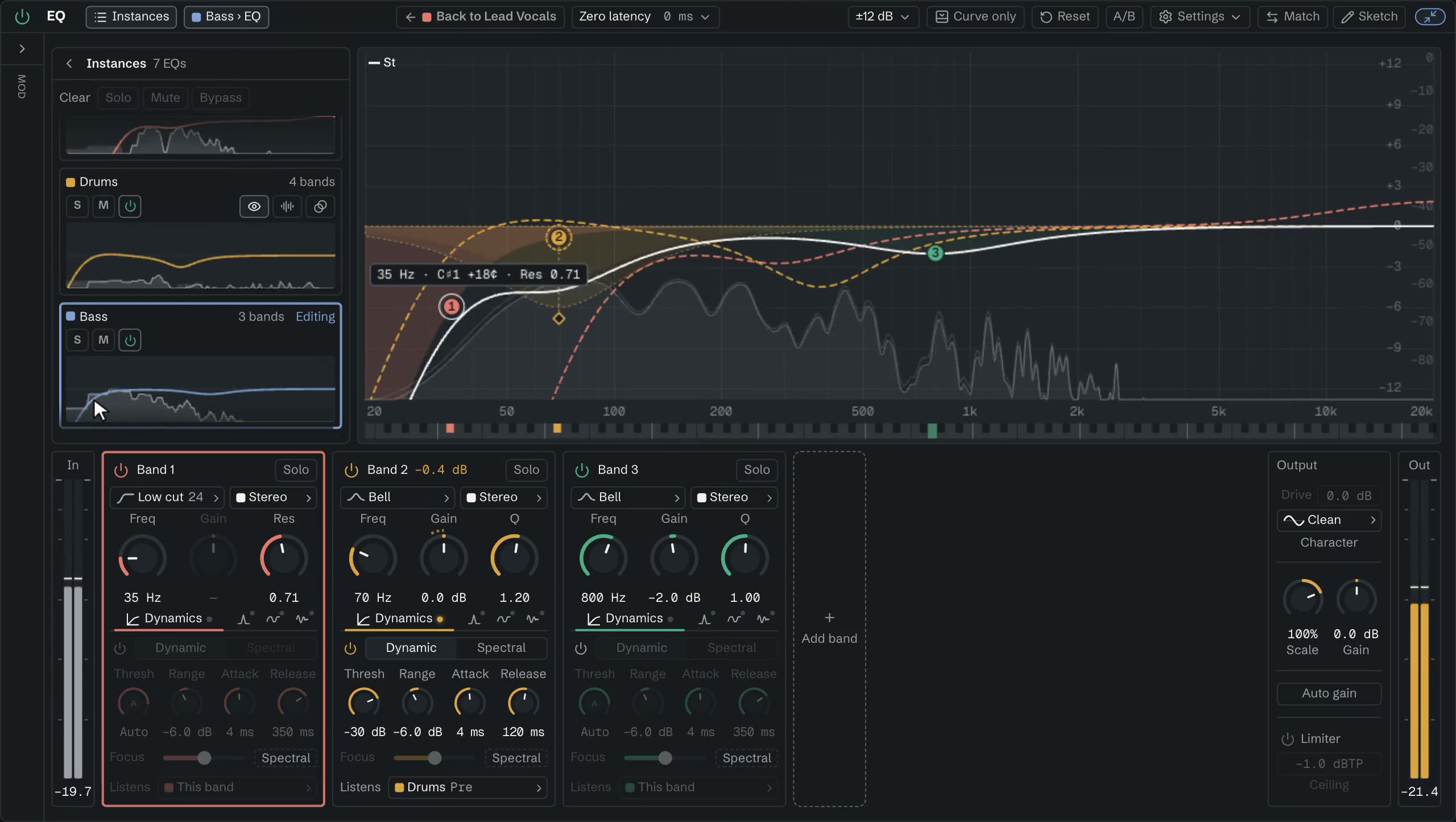
Click one and this window controls it, with automation and undo going to that EQ. Put any other EQ’s curve or spectrum behind the one you’re editing.
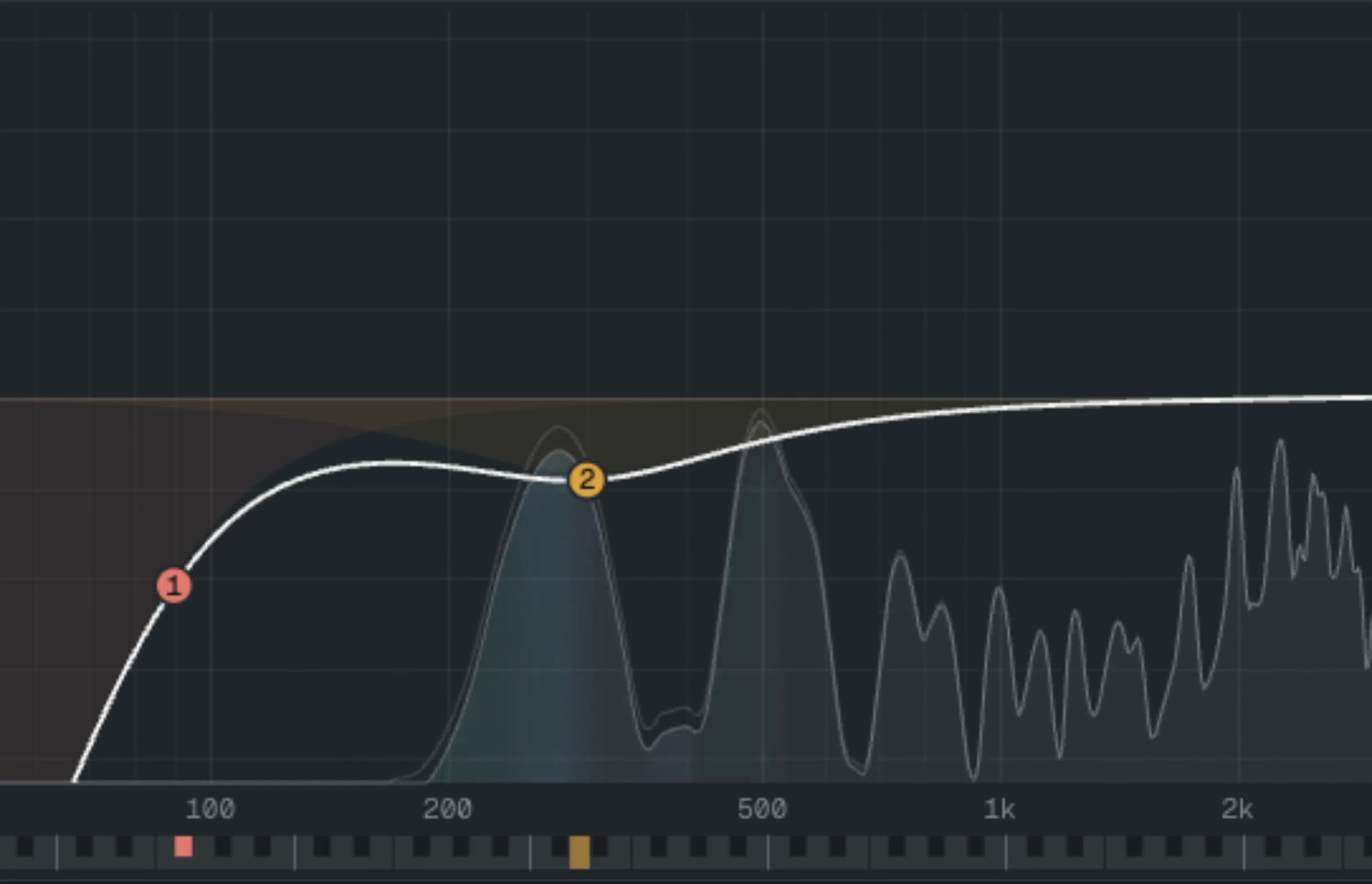
Turn on masking.
Pick the tracks to check against. The spectrum takes each track’s colour wherever that track is louder than this one. Compare all of it, only the hits, or only the sustain.
Now the track in the way.
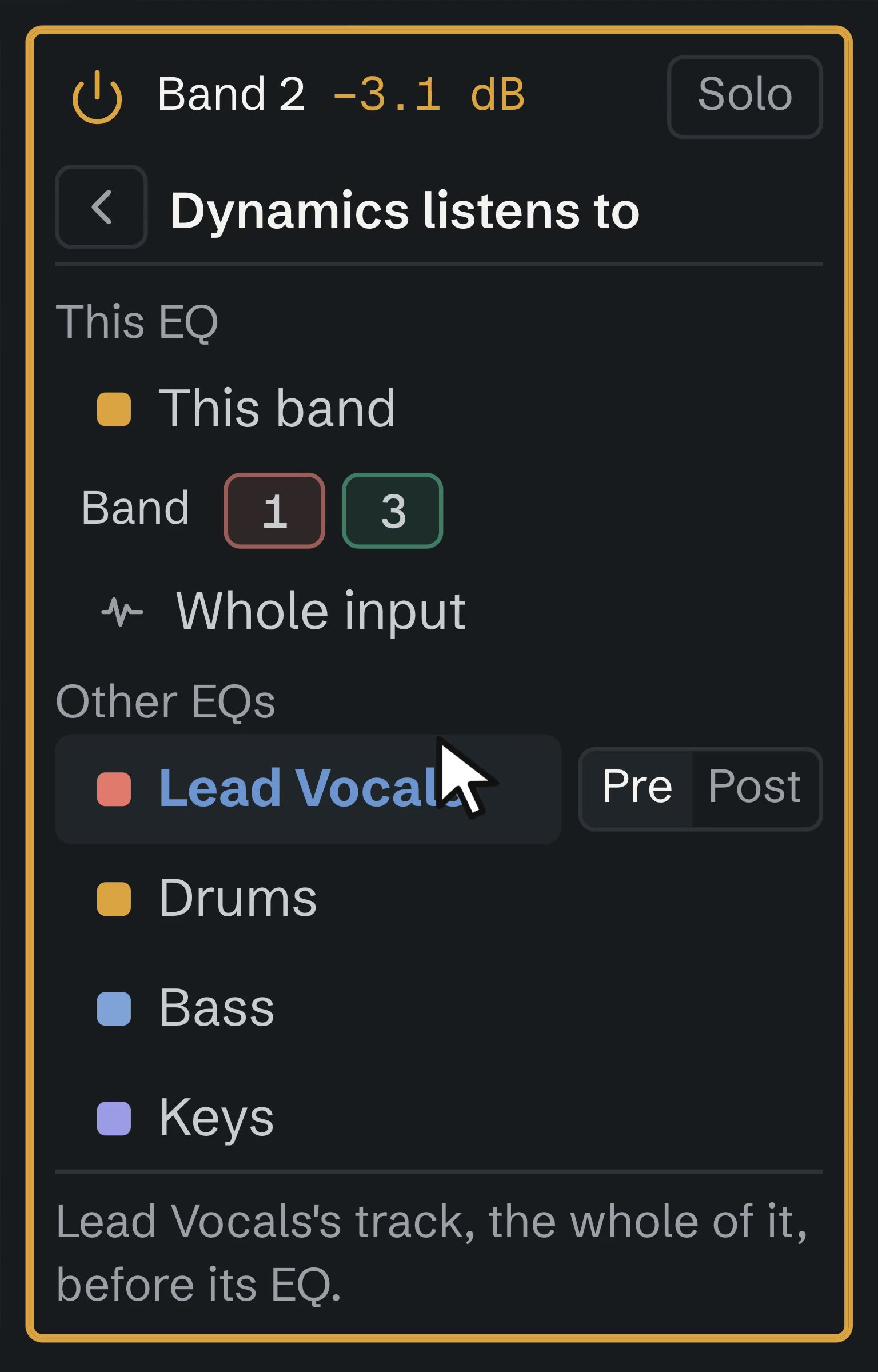
Open a band’s Dynamics, Transient or Drive and pick another EQ from the list, before or after that EQ’s own processing. No sidechain routing, and each band can pick its own.
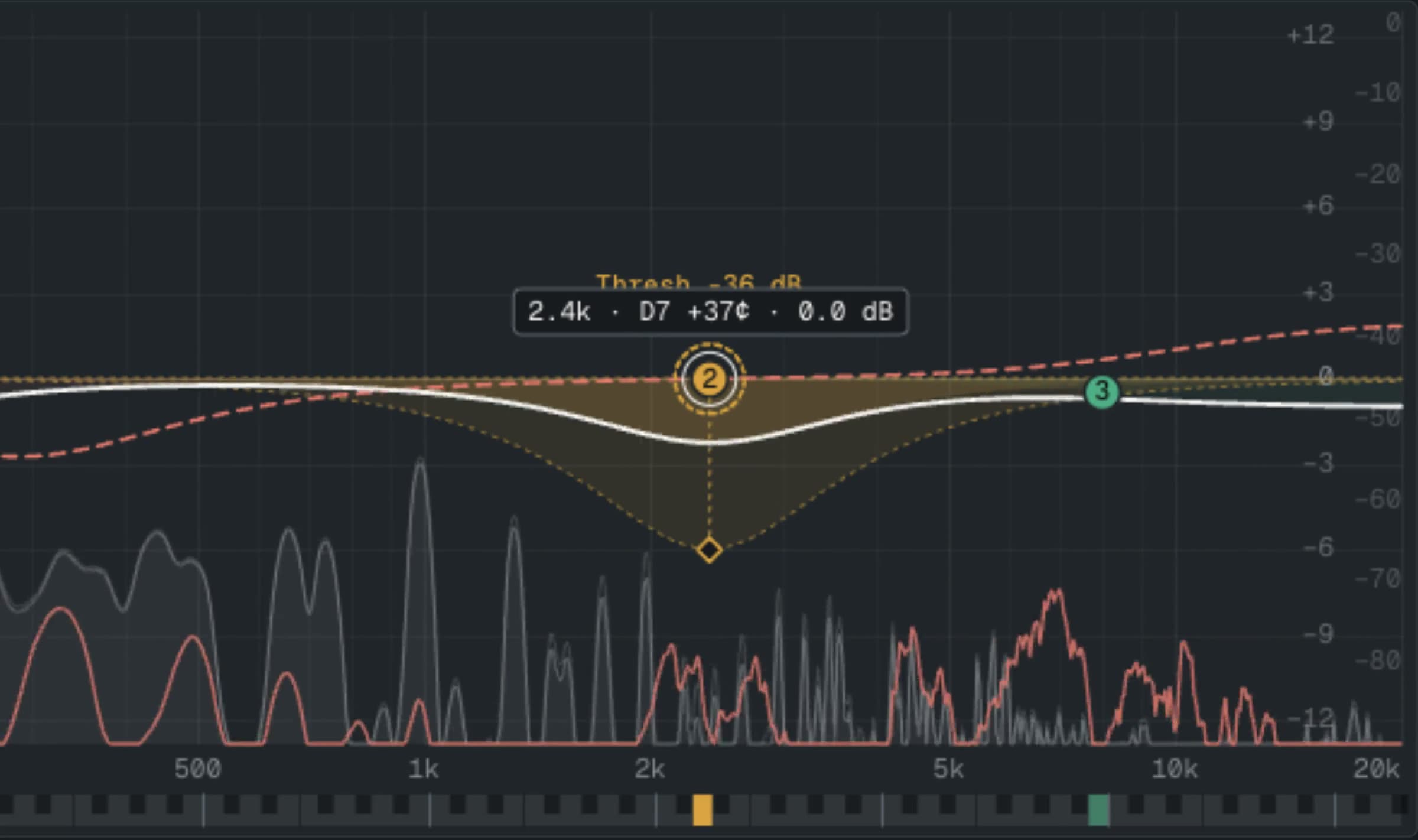
Set a threshold and a range. When the other track crosses the threshold, this one band dips, then recovers at the release you set. The rest of the track doesn’t move.
Same trick, down low.
Put a dynamic band on one track’s low end and let it listen to another. Only that band moves, so the rest of the track keeps its level and tone.
Works between EQs in the same host process.
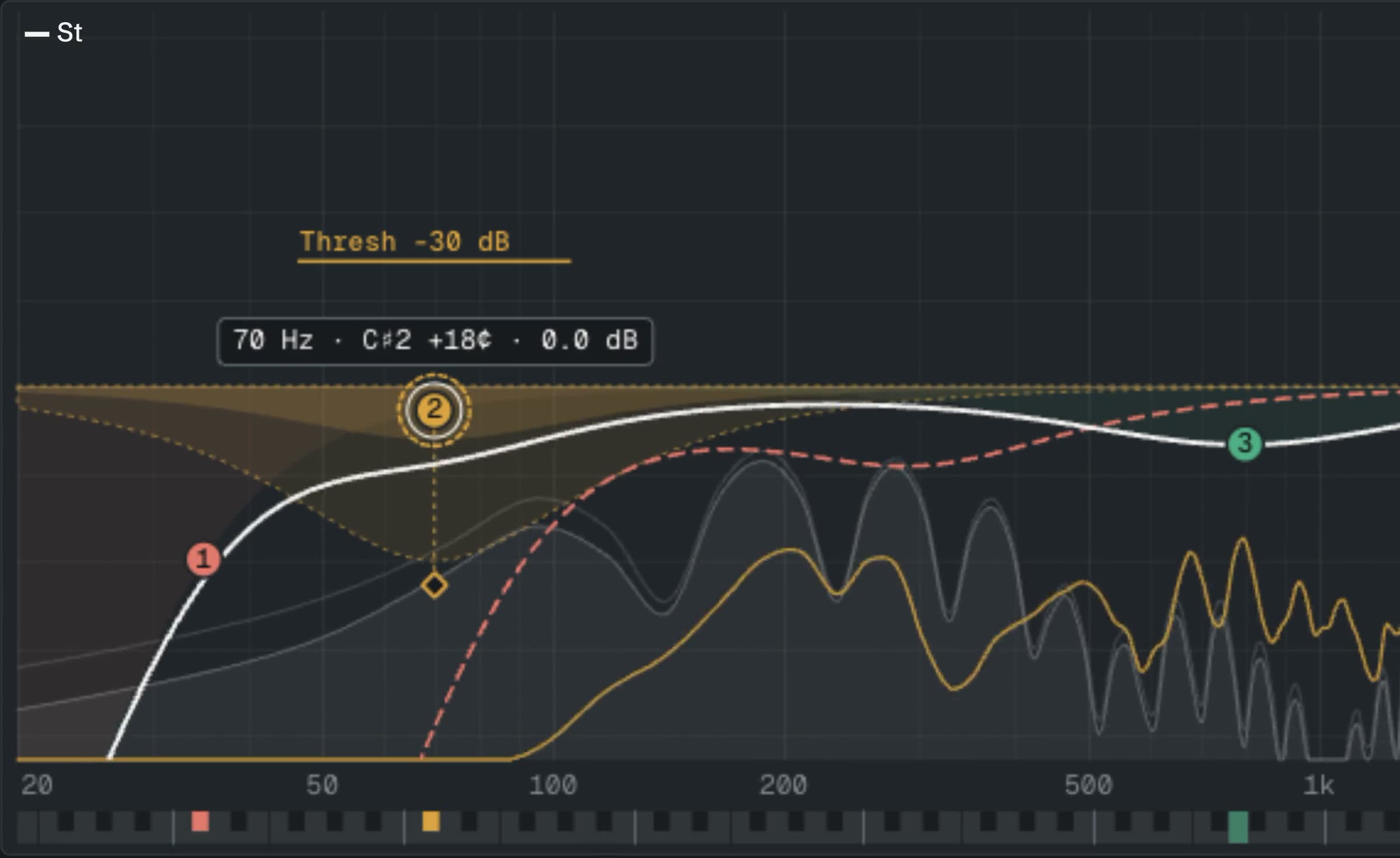
It’s out front now. And some notes bite.
Static holds its gain. Dynamic moves the whole band with its level. Spectral lets each frequency follow its own level, so only what rings moves. One click switches a band.
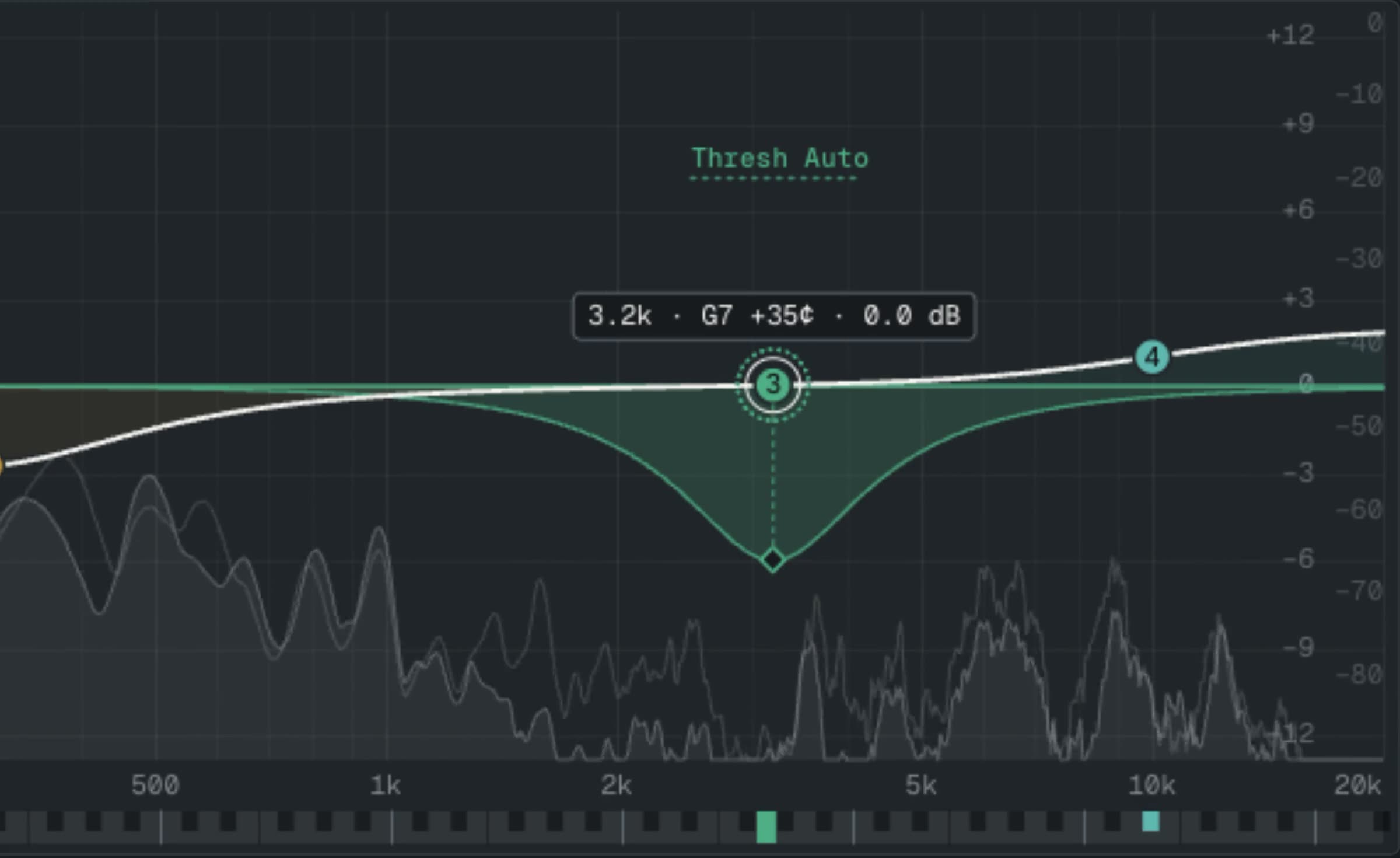
On to the next track. It’s boxy, but you can’t lose the attack.
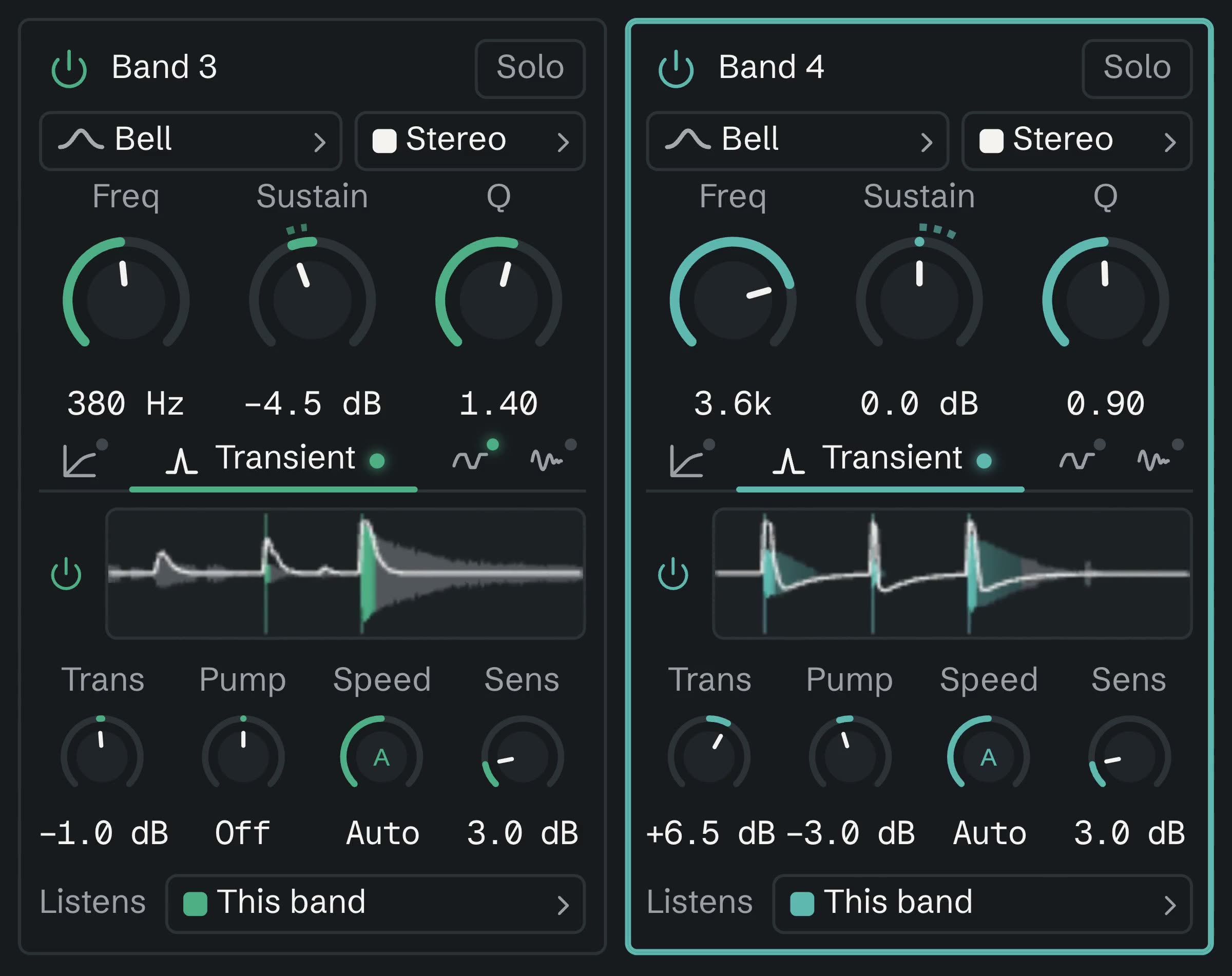
A band can split its sound into the hit and everything after it, with a gain for each. Lift the attack and pull down the ring at the same frequency.
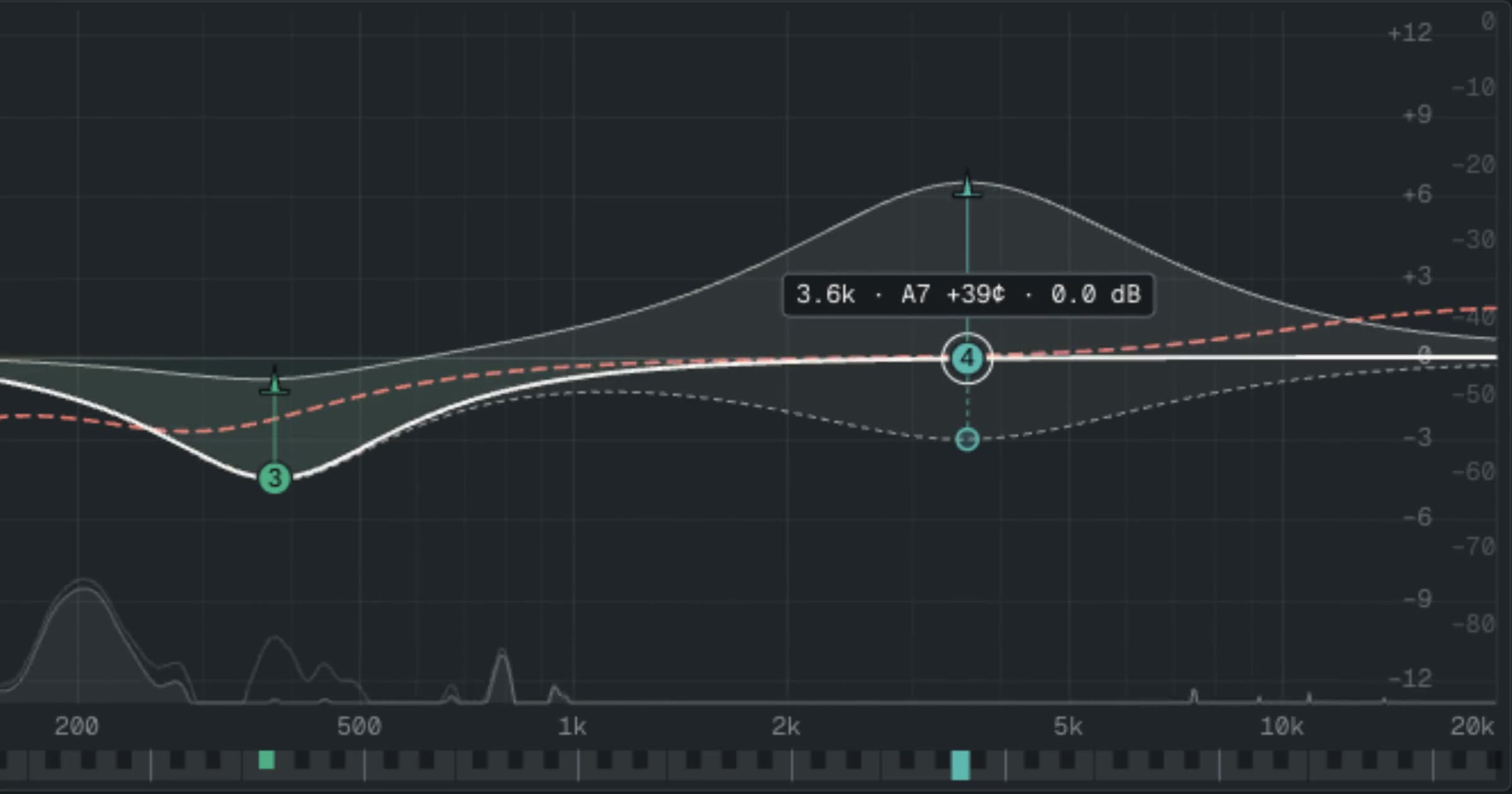
Transient and Sustain are on every band, and a lane shows you the hits. The detector can listen to this band, another band, the whole input or another EQ.
A little air on top?
hs 10k +2, Return. The band plays on the curve as you type. Use a type, a frequency or note, a gain and a Q in any order, like lc 80 48 or notch A1.
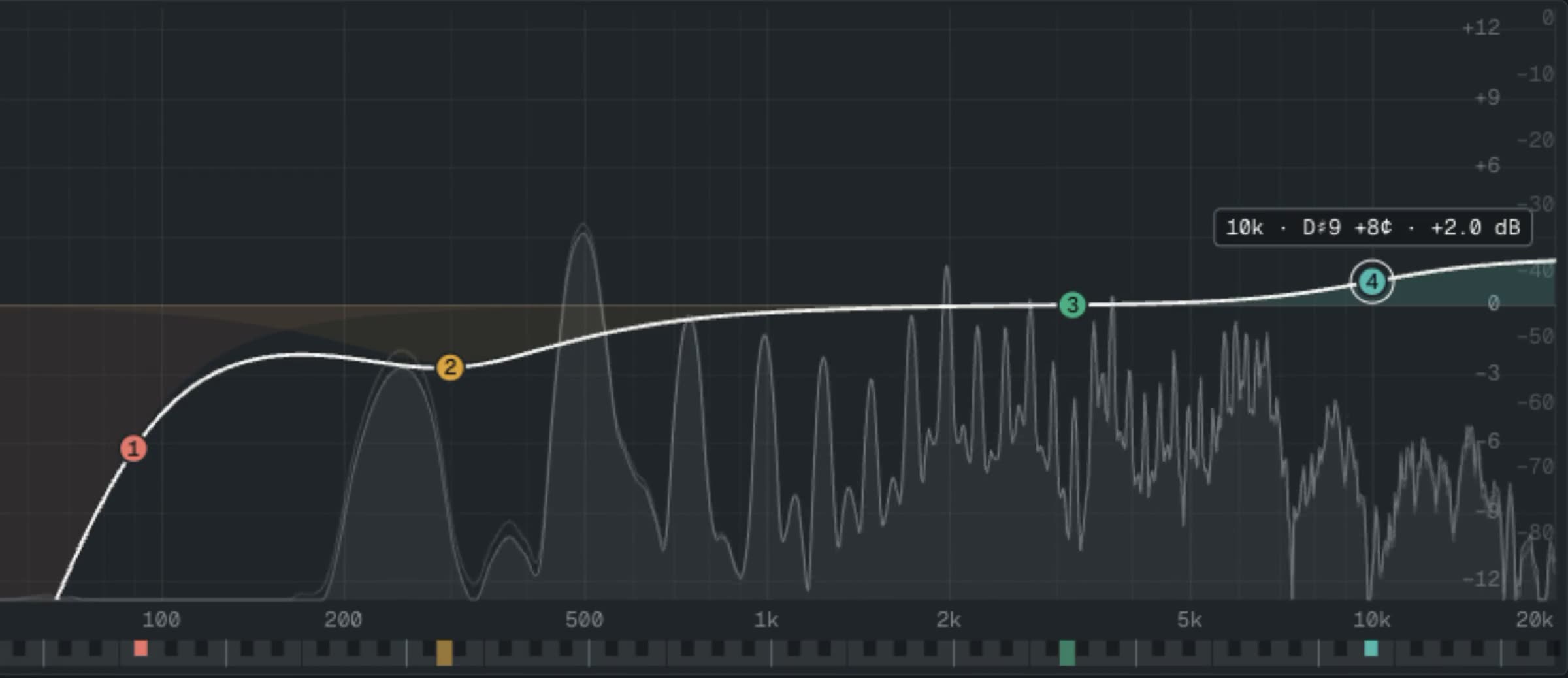
Clean. Maybe too clean.
Only what the band covers goes in, and only the distortion comes back, so the band’s own level stays at its gain. Up to 36 dB, with its own Tone and Mix.
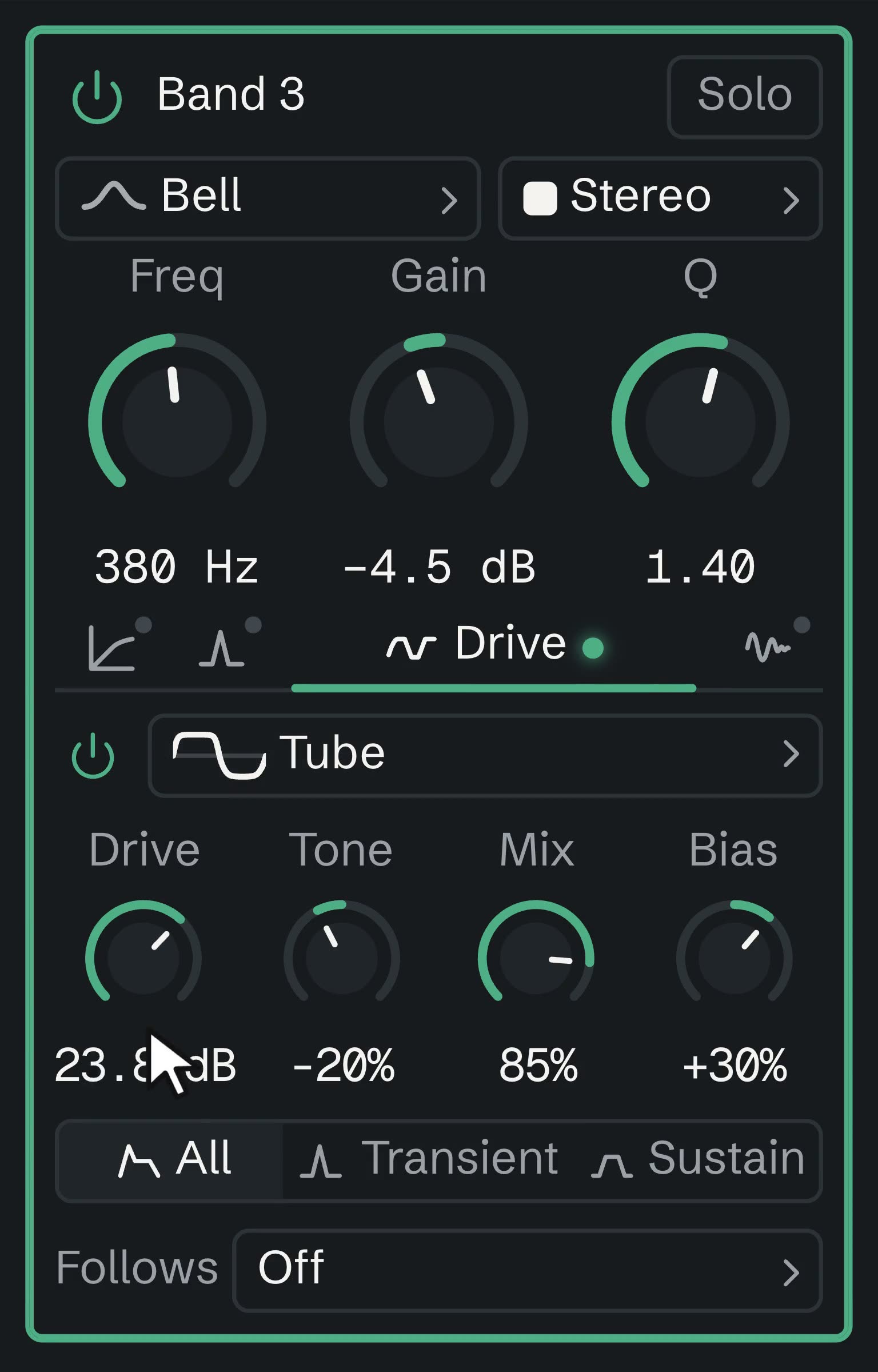
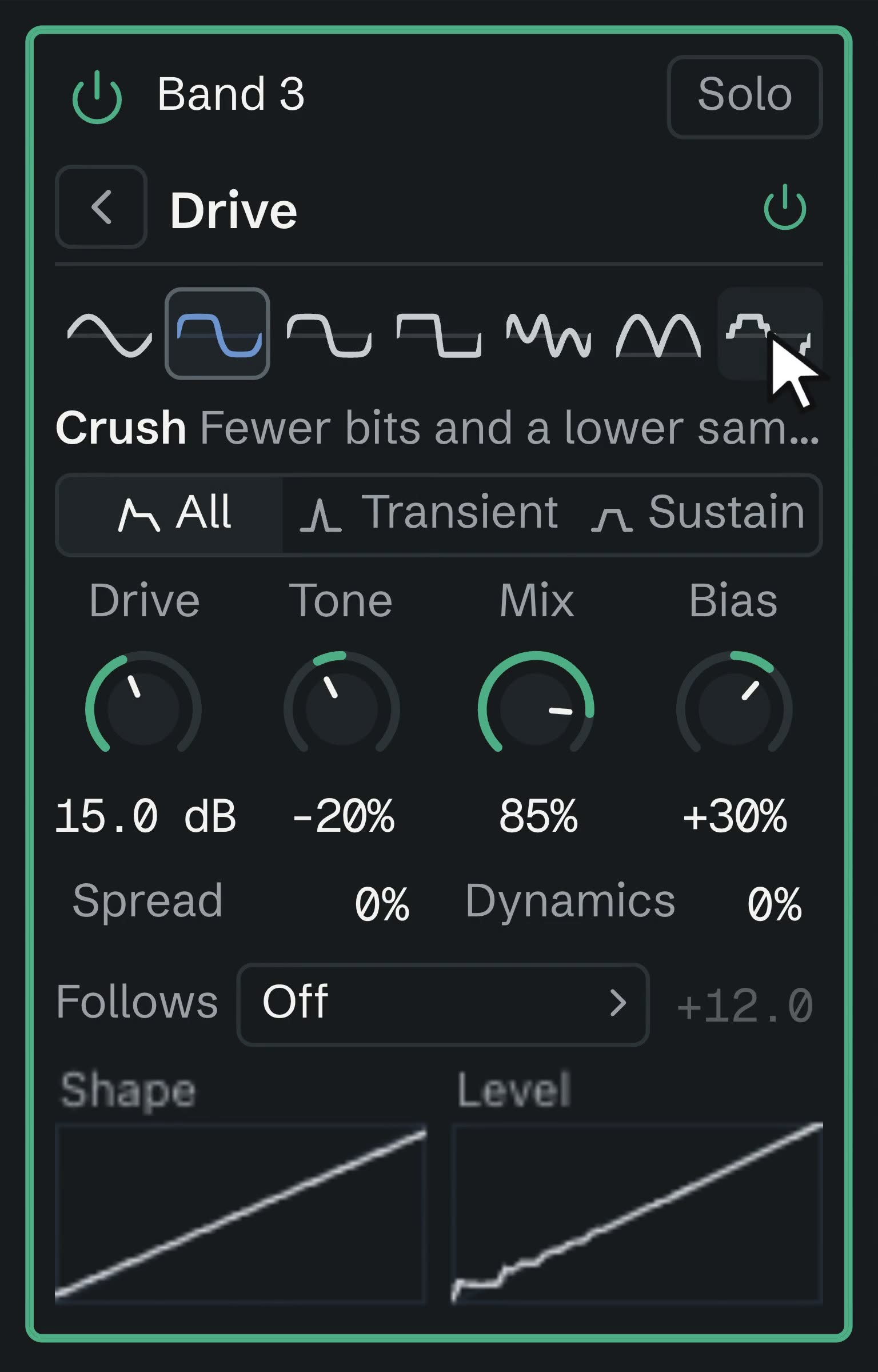
Round it off, fold it back or crush it. Bias adds even harmonics, Spread drives left and right differently, and Dynamics undoes the squash and keeps the harmonics.
Pictures show what each shape does as you change it.
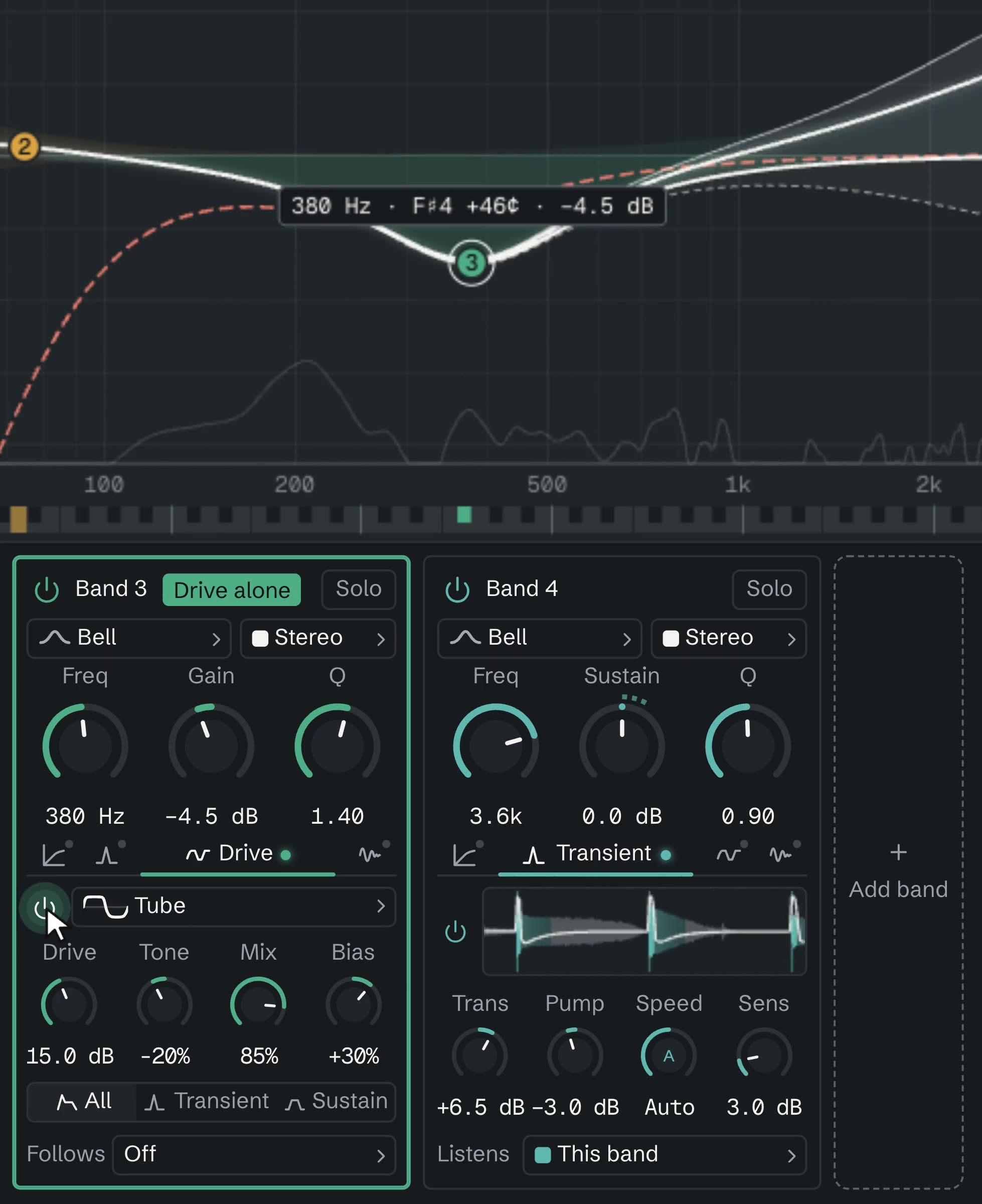
Not sure what it’s adding?
Hold the power button on a band’s Dynamics, Transient, Drive or Feedback, and you hear only what it changes. Let go and the mix is back. A click still turns it on or off.
Or let it ring.
Tuned, the band rings at a pitch set by its frequency. In ms, it echoes on just that band. The loop runs through the band’s own filter and a soft clip, so it never runs away.
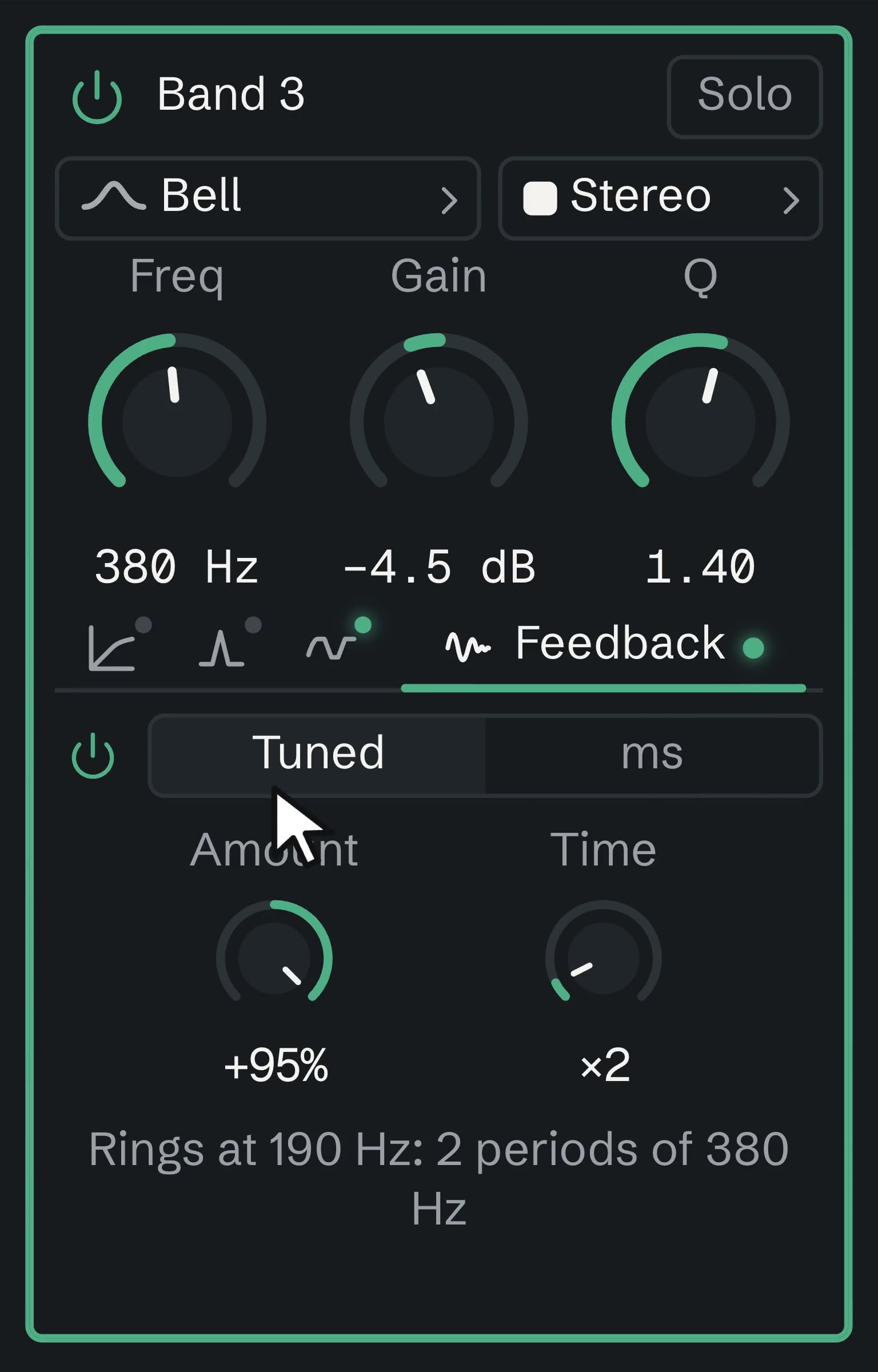
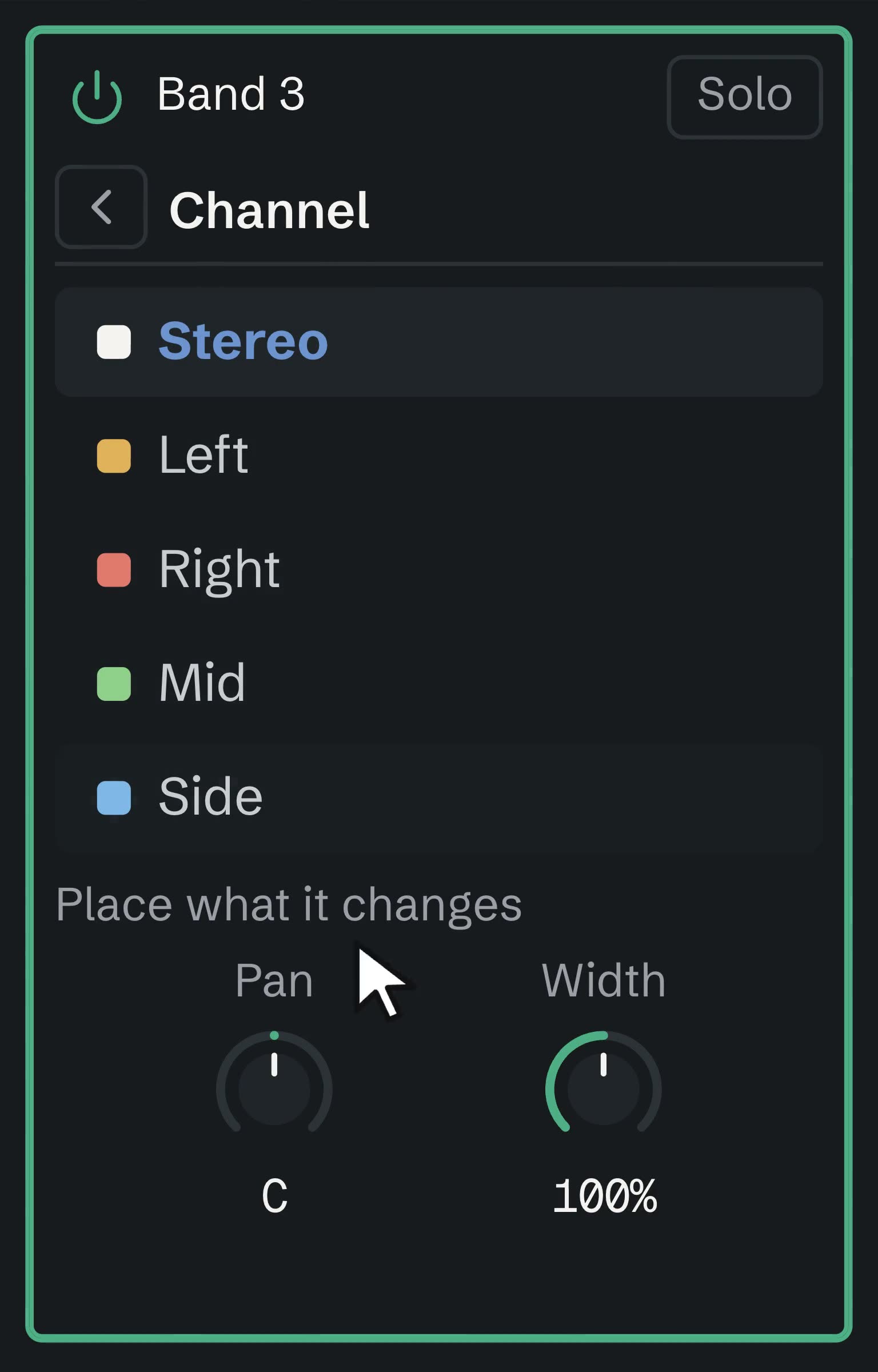
Pan and Width move only what the band adds or takes away, so the rest of the track stays put. A band can also run on Stereo, Left, Right, Mid or Side.
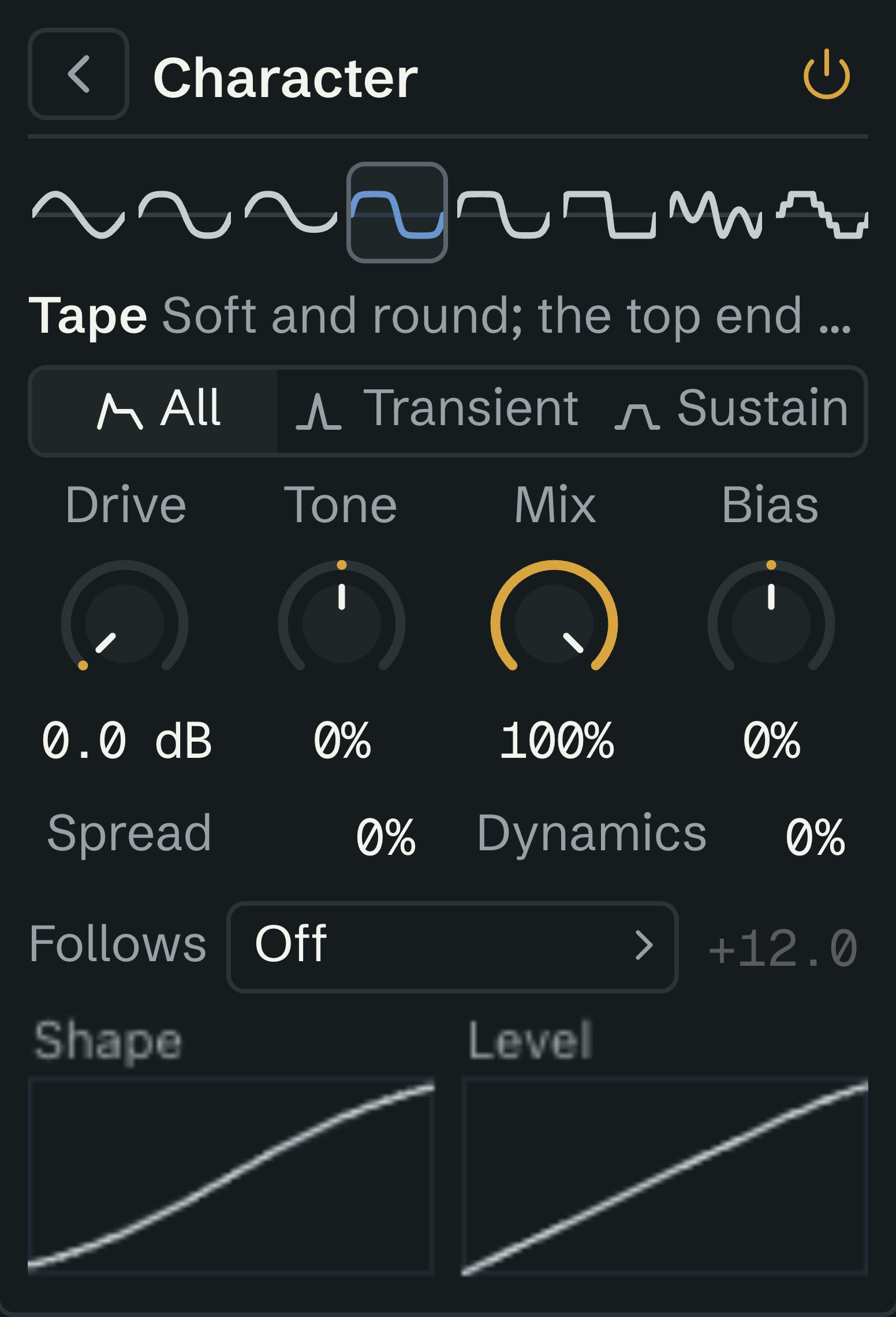
Then the whole sound.
A final stage after the bands: Clean, Subtle, Warm, Tape, Tube, Fuzz, Fold or Crush. Up to 36 dB of drive, on everything, only the hits, or only the rest.
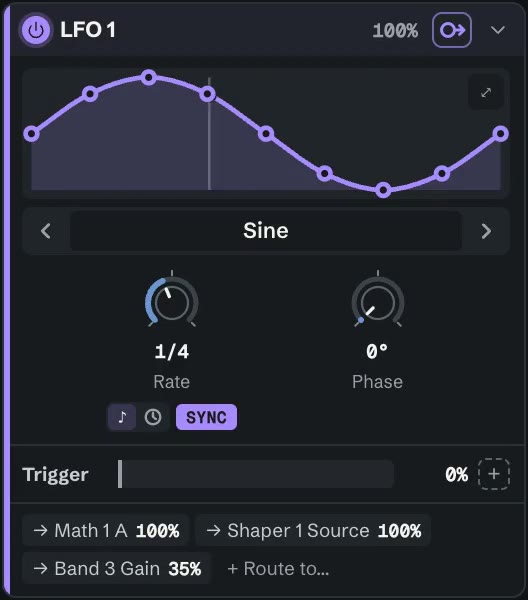
It all sits right now. But it sits still.
21 modulators, from LFOs and envelope followers to step sequencers and XY pads, up to 16 on one EQ. Drag one onto a band’s frequency, gain, Q, threshold, drive or feedback, or onto another modulator.
Then the message: “Can we get this in 7.1.4?”
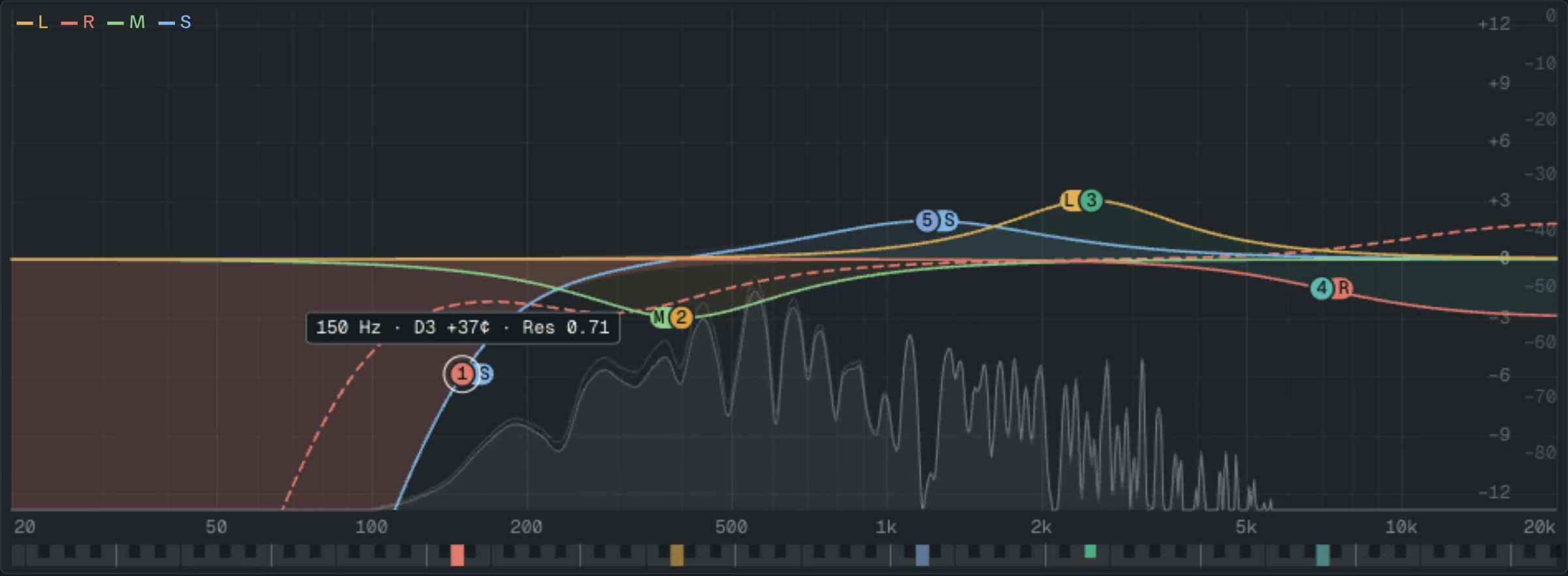
Every band picks a lane: stereo, left, right, mid or side. Each lane draws its own curve, so you can see what each part of the sound is getting.
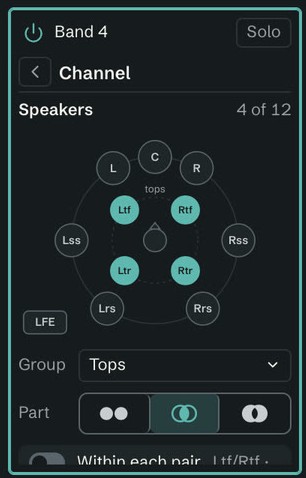
On a surround track, pick a band’s speakers on a map of the room, or a group such as the tops. Shared and Differences work on what they have in common, or what sets them apart.
Surround in Logic and REAPER; up to 16 numbered channels in REAPER.
That was one session.
The drum bus, running in your browser. Whatever you change carries over into the whole song below.
Press Play, grab a band and change anything. It runs the same engine as the plugin, so what you hear here is exactly what you’d hear in your DAW.
Your drum EQ comes with you, on the Drums track. Press Play and get the vocal back.
Conceived, designed, and perfected by humans.
Coded and optimized by machines.
The sampler that goes granular, and makes anything playable.
ComingThe reverb that blends real rooms with impossible ones.
ComingThe auto-sampler that turns any plugin into an instrument.
ComingConceived, designed, and perfected by humans.
Coded and optimized by machines.
Not yet. They’re in beta with current students and StemShare moderators. Join the waitlist and we’ll tell you when they’re on sale.
Yes. The code in Make Things plugins is written by AI coding agents. The exceptions are the open-source libraries they build on, like JUCE. We’d rather you hear that from us.
Nope. Just local DSP running on your machine.
Yes. You get 14 days free, with full sound and no card. The trial starts the first time you sign in from a plugin, and each person and each computer gets one.
Sign in once on each computer, up to 3, and every Make Things plugin works there. They renew your licence online about once a week, and keep working offline for up to 30 days.
That plugin, with every update to its major version: EQ 1 gets every 1.x update. A future major version would be a separate purchase, and the one you bought keeps working.
The plugins stop working soon after your paid time ends. Effects pass your audio through unchanged and instruments go silent, so your sessions still open, with their settings intact. Subscribe again and it all comes back.
macOS 12 or later, on Apple Silicon or Intel, and a DAW that loads AU or VST3. Windows is coming, as VST3 on 64-bit Windows 10 and 11. There’s no AAX version, so they won’t load in Pro Tools.
Yes. You can get a full refund within 14 days of a payment, no questions asked. Email support@makethings.audio.
Paddle handles our checkout, sales tax and receipts, so that’s the name you’ll see on your card statement.
Yes, two ways. Teachers can give a class access through a StemShare Group, which covers every student and instructor in it for as long as they’re a member. Or individual students and educators can get 50% off the yearly subscription, renewed each year with valid status. Ask for either one here.
Questions? support@makethings.audio